When an IPTV EPG is missing or incorrect, refresh the playlist and TV guide first, then check the device timezone, EPG time offset and account details. If channels play normally but every guide entry is empty, the problem is more likely to involve the EPG source or provider than your internet speed.
Article summary
- Match the symptom to the likely cause
- What an IPTV EPG does
- Fix the IPTV EPG in the correct order
- 1. Confirm whether channels still play
- 2. Refresh the playlist
- 3. Refresh the EPG separately
- 4. Restart the player
- 5. Check automatic date, time and timezone
- Correct an EPG that is one or two hours wrong
- Verify M3U and Xtream Codes details
- Clear EPG data without deleting your account
- App-specific checks
- TiviMate
- IPTV Smarters
- XCIPTV
- When to contact the provider
- Frequently asked questions
- Why does my IPTV work but show no program information?
- Why is the IPTV guide showing the wrong time?
- How long should an EPG update take?
- Will clearing the cache delete my IPTV login?
- Can an internet problem affect the EPG?
Follow the checks below in order. Stop when the guide returns; changing several settings at once makes the real cause harder to identify.
Match the symptom to the likely cause
| Symptom | Likely cause | First action |
|---|---|---|
| Every channel says “No information” | EPG was not downloaded or the source is unavailable | Refresh the EPG and playlist |
| Programs are one or more hours early/late | Timezone or EPG offset mismatch | Check automatic time and EPG time shift |
| Only some channels have no guide | Channel IDs do not match the EPG data | Update the playlist and ask the provider to check mapping |
| Channels and EPG are both missing | Expired or incorrect login details | Verify the server URL, username and password |
| The guide loads, then disappears | Cache, storage or background-update problem | Clear EPG data and download it again |
What an IPTV EPG does
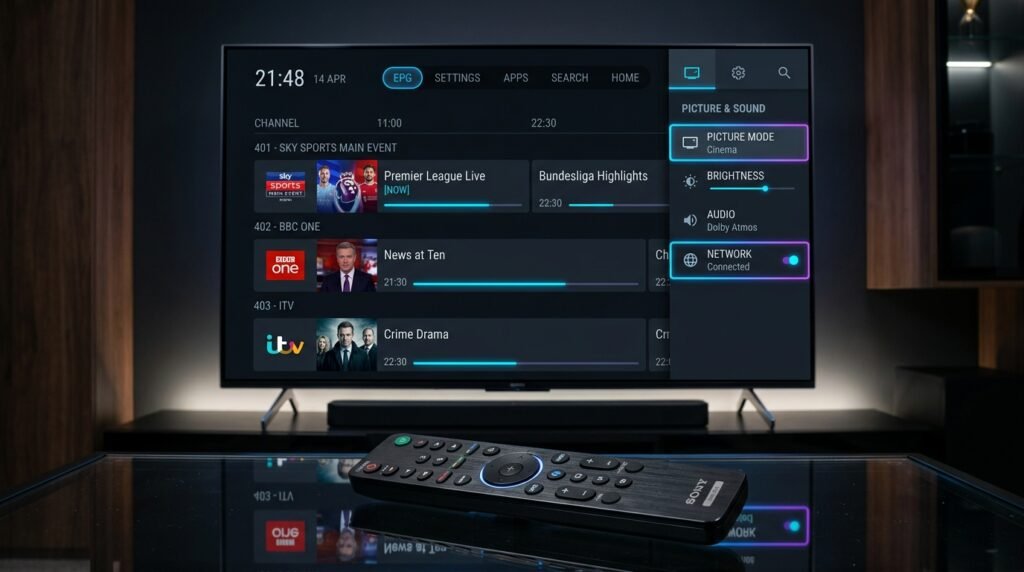
An Electronic Program Guide is a schedule connected to channel identifiers in your playlist. The player downloads the schedule, matches each entry to a channel and displays the current and upcoming programs. The channels and guide are related, but they are not always delivered in the same data request.
This is why live television can continue playing while the guide is empty. It also explains why re-installing the entire app should be a last step, not the first.
Fix the IPTV EPG in the correct order
1. Confirm whether channels still play
Open several channels from different categories. If they all play, your account is probably connected and you can focus on the guide. If nothing plays, verify the account and server details before spending time on EPG settings.
2. Refresh the playlist
Use the player option named Refresh Playlist, Update Playlist, Sync or a similar label. This retrieves the latest channel list and can repair changed channel-to-guide mappings.
3. Refresh the EPG separately
Open the EPG or TV Guide settings and choose Update, Refresh or Download. Leave the app open until it finishes. Large guides can take several minutes, especially on a television with limited storage.
4. Restart the player
Fully close the application rather than returning to the device home screen. Reopen it and wait for the guide to populate. On a television or streaming stick, restarting the device can also release memory used by other apps.
5. Check automatic date, time and timezone
Set the device to obtain its date, time and timezone automatically. A manually selected timezone can make every program appear early or late even when the downloaded guide is correct.
Correct an EPG that is one or two hours wrong
If every program is shifted by the same amount, do not delete the playlist. Look for an EPG Offset, Time Shift or Time Zone setting in the player.
- Confirm the device timezone is correct.
- Set the EPG offset to zero and refresh the guide.
- If the schedule is still wrong by exactly one hour, test +1 or -1 hour.
- Check whether daylight-saving time changed recently.
- If only one channel is shifted, report that channel to the provider instead of changing the global offset.
Verify M3U and Xtream Codes details
With an M3U setup, the guide may use a separate XMLTV URL or an EPG address embedded in the playlist. With Xtream Codes, the player usually requests channels and EPG data using the server URL, username and password. The M3U versus Xtream Codes guide explains how these login methods differ.
Check for:
- A missing
http://orhttps://in the server address. - An extra space copied before or after the username or password.
- An old portal address after the provider changed servers.
- An expired account.
- A separate XMLTV URL that was never entered into the player.
Do not publish or send screenshots containing the full playlist URL. M3U and Xtream URLs can contain private account credentials.
Clear EPG data without deleting your account
Most players have a setting to clear or reset downloaded guide data. Use that before clearing all application data.
- Save the server address, username, password or M3U URL somewhere secure.
- Open the player’s EPG settings.
- Choose Clear EPG, Delete EPG Data or a similar option.
- Restart the app.
- Download the guide again and wait for completion.
Clearing the device-level app data removes profiles and settings on many platforms. Use it only when a guide-only reset and normal cache clear have failed.
App-specific checks
TiviMate
Open Settings, then EPG. Update the guide and review the past-days and update-interval settings. If you use an external EPG source, confirm that it remains assigned to the correct playlist. The TiviMate setup tutorial covers the broader playlist and player configuration.
IPTV Smarters
Use the refresh icon or Live with EPG refresh option available in your version. If the guide stays empty, log out of the profile, restart the app and sign in again only after confirming the credentials. Fire TV users can follow the IPTV Smarters Firestick guide for app-level cache and installation steps.
XCIPTV
Refresh live TV and EPG from the player menu, then check the EPG source and timezone settings. Menu wording varies by XCIPTV version and device, so avoid deleting the profile until you have saved the login details.
When to contact the provider
Contact support when the account is active, channels play, the app downloads the guide without an error and the guide is still empty on more than one device. Provide:
- The device and app name/version.
- The time the problem started.
- Whether every channel or only specific channels are affected.
- Whether the problem also happens on another device.
- A screenshot with usernames, passwords and server addresses hidden.
If you need a plan with EPG access and setup assistance, compare the available IPTV subscription options.
Frequently asked questions
Why does my IPTV work but show no program information?
The stream and schedule can be delivered separately. Refresh the EPG, verify its source and check whether the provider’s guide service is available.
Why is the IPTV guide showing the wrong time?
The device timezone or player EPG offset is usually incorrect. Set automatic time first, return the offset to zero and then test a one-hour adjustment only if necessary.
How long should an EPG update take?
A small guide may load in seconds, while a large multi-country guide can take several minutes on a low-powered television or streaming stick. Keep the app open until the update completes.
Will clearing the cache delete my IPTV login?
A normal cache clear usually does not. Clearing application data or storage normally removes profiles, so save your credentials first.
Can an internet problem affect the EPG?
Yes, if the guide download cannot complete. If channels also pause or freeze, test the internet speed available for IPTV before resetting the player.