The IPTV Smarters Pro Firestick install is a ten-minute job on most sticks and an impossible one on two of them. That is the part almost every guide leaves out.
Article summary
- Which Firestick Models Can Still Install IPTV Smarters Pro?
- Your Firestick Runs Vega OS: Here Is What to Do Instead
- What IPTV Smarters Pro Actually Is (and What It Needs From You)
- Before You Start: Downloader, Permissions and Credentials
- Install IPTV Smarters Pro on Firestick, Step by Step
- Step 1: Install the Downloader app
- Step 2: Allow installs from unknown apps
- Step 3: Download the APK
- Step 4: Install the app
- Step 5: Open it for the first time
- First Launch: M3U Playlist or Xtream Codes Login?
- Using IPTV Smarters Pro Day to Day
- Troubleshooting IPTV Smarters Pro on Firestick
- 1. Login or authorization error
- 2. Buffering or lag
- 3. EPG or channel list missing
- 4. The app will not open
- 5. Downloader is missing from the Install Unknown Apps list
- Advanced Settings Worth Changing
- Before You Press Play
- Questions Firestick Owners Ask About IPTV Smarters Pro
- Can you sideload apps on the Fire TV Stick 4K Select?
- Can you sideload on the new Fire TV Stick HD?
- Will Amazon block sideloading on my existing Firestick?
- Is IPTV Smarters Pro on the Amazon Appstore?
- Do I need a subscription to use IPTV Smarters Pro?
- Is IPTV Smarters Pro free?
- Can I install IPTV Smarters Pro on other devices?
Before you open Downloader or type a single URL, you need to know which Fire TV Stick is plugged into your TV. Amazon changed the operating system on its newest models, and the Android install route does not exist on those.
Everything below assumes you have a PlayTVX subscription, or are about to get one. See PlayTVX on Firestick for what the service offers on this device. Start with the model check in the next section. If your stick runs Fire OS, you go straight on into the five install steps. If it runs Vega OS, section two tells you what works instead and saves you an evening of hunting for a workaround that was never there.
Which Firestick Models Can Still Install IPTV Smarters Pro?
Pick up the remote and open Settings → My Fire TV → About, then read the software line. A version number that starts with 1 means the stick runs Vega OS, and Vega sticks cannot install this app. Fire OS versions start with 3, 5, 6, 7, 8 or 14, and every one of those can (AFTVnews).
That check is worth doing even if you think you know the answer. Amazon does not state which operating system a Fire TV runs anywhere on its product pages, so the box, the retail listing and the packaging all stay silent on the one detail that decides whether an APK will install.
If the stick is still sealed, the model name is enough on its own. Amazon publishes a device specification table that lists the operating system for each current Fire TV, and the split falls like this:
| Fire TV model | Operating system | Can it install IPTV Smarters Pro? |
|---|---|---|
| Fire TV Stick 4K Select (2025) | Vega OS 1.1 | No |
| Fire TV Stick HD, 2nd gen (2026) | Vega OS 1.1 | No |
| Fire TV Stick 4K Plus (2025) | Fire OS 8 | Yes |
| Fire TV Stick 4K Max, 2nd gen (2023) | Fire OS 8 | Yes |
| Fire TV Stick 4K Max, 1st gen (2021) | Fire OS 7 | Yes |
So the fork is simple. If the About screen showed Fire OS, skip the next section and go to the prerequisites. If it showed a version starting with 1, read the next section, because the five steps everyone quotes will not work on your stick no matter how carefully you follow them.
Your Firestick Runs Vega OS: Here Is What to Do Instead
There is no method. Not a hidden toggle, not a Downloader trick, not an ADB command. It is worth understanding why, because a reader who does not understand it spends the evening looking for the workaround that does not exist.
Vega is not Android. Amazon describes it as “a new operating system built specifically for our devices” and says “we adopted Linux components as our foundation” (Amazon Developer Blog). Apps for it ship as .vpkg packages and install through a command that reads vega device install-app --packagePath …, and the Vega documentation does not mention Android APKs anywhere.
That makes it a package-format wall, not a permission that is switched off. An APK on a Vega stick is the wrong kind of file entirely, so there is no setting to flip.
Even Vega’s own developer install path needs Developer Mode authentication through a command-line tool and a six-digit code read off the device. That is a developer workflow, not something anybody does from the sofa.
It is also permanent. Amazon’s own words on its Fire TV developer page are: “Starting with Fire TV Stick 4K Select, all future Fire TV Sticks will run on Vega.” Which is the real reason to run the model check before you buy a stick, not just before you install an app on one.
Your subscription is not tied to the stick, though, and it will run on other hardware you may already own:
- The television itself. Samsung, LG and other smart platforms have their own app stores, and your TV may already run an IPTV app natively with nothing plugged into it.
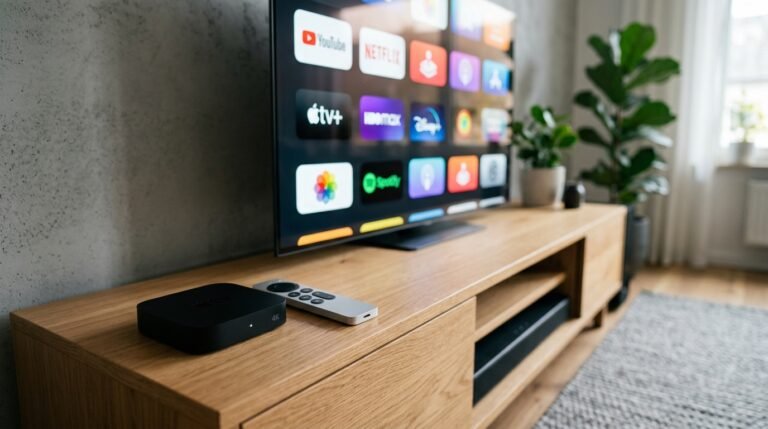
- An Apple TV. The App Store carries players, so an Apple TV setup takes minutes and needs no sideloading at all.
- An Android TV box. These are still Android, so an Android TV box, which does still sideload, behaves exactly like an older Firestick.
What IPTV Smarters Pro Actually Is (and What It Needs From You)
IPTV Smarters Pro is a player, not a service. It does not host channels and it does not supply them. It connects to a provider’s server using credentials you type in, and until you do that it opens completely empty. The Microsoft Store listing for the Smarters player describes exactly that: a player for M3U and M3U8 playlists and Xtream Codes logins from third-party providers.
What it gives you once it is connected:
- M3U and M3U8 playlist support
- Xtream Codes login
- An electronic programme guide
- Separate movie and series sections for on-demand content
- Favourites, so the channels you watch are not buried
- Parental controls
On safety, the app and the service are two different questions. Smarters is a mainstream, store-listed media player, and its presence on a first-party storefront is the ordinary distribution you would expect of one.
A store listing says nothing about what any provider streams through the player. That is a separate product, and no storefront answers for it.
The practical part matters more anyway. Sideloading any APK means trusting wherever the file came from, so take the link from your provider’s support team rather than a search result, and skip anything advertising a modified or unlocked build. If you are still deciding whether this is the right player at all, how Smarters compares with TiviMate and XCIPTV covers that properly.
Before You Start: Downloader, Permissions and Credentials
Three things, and the third is the one people forget.
- The Downloader app. It fetches the APK. It is free and it is in the Amazon Appstore.
- Permission to install unknown apps. Fire OS blocks third-party installs until you allow them, per app.
- Your PlayTVX credentials. Username, password and server URL, or the M3U link.
Have the credentials open on your phone before you start. Typing a server URL with a remote and an on-screen keyboard is slow, and it is where most login errors are actually born.
Install IPTV Smarters Pro on Firestick, Step by Step
Step 1: Install the Downloader app
From the Fire TV home screen, go to Find → Search, type Downloader, and pick the orange app with a white downward arrow. Select Download or Get and let it install.
Step 2: Allow installs from unknown apps
Go to Settings → My Fire TV → Developer Options, open Install Unknown Apps, and switch Downloader on.
If Developer Options is not in that menu, it is hidden rather than missing. Open Settings → My Fire TV → About, highlight the device name, and click it seven times. The menu appears.
If Downloader is missing from the Install Unknown Apps list itself, that is a known Fire OS bug and not something you did wrong. Troubleshooting item 5 below has the builds it affects and what to do about it.
Step 3: Download the APK
Open Downloader, put the cursor in the URL box, and enter the direct link to the IPTV Smarters Pro APK, then select Go.
A “Downloader code” is nothing more than a short number that stands in for that URL, which makes it easy to type with a remote.
It also makes it easy to circulate long after the link behind it has moved or gone dead. That is why a code copied from a forum post so often lands on an error page, or on something you did not ask for.
Ask PlayTVX support for the current link and type that. Support is on live chat, WhatsApp and Contact@playtvx.com, around the clock, and this is a thirty-second question.
Step 4: Install the app
When the download finishes, select Install. Once it completes, choose Done to return to Downloader, then Delete to remove the APK file. Firestick storage is small and the installer is no longer doing anything useful.
Step 5: Open it for the first time
Go back to the home screen and find the app under Apps & Channels → See All. Open it and accept the Terms of Use when prompted.
Stop there. The login screen is the next section, and it asks you a question that is worth answering deliberately.
First Launch: M3U Playlist or Xtream Codes Login?
The app opens on two options and they are not equivalent.
- Load your playlist or file/URL. You paste an M3U URL. Simple, quick, and it works.
- Login with Xtream Codes API. You enter a username, a password and a server URL.
The Xtream Codes login is generally the better choice, because it is the route that normally brings the programme guide and the movie and series sections with it. An M3U URL is the dependable fallback when the login will not take, and it is the right pick if that is the only thing your provider issued.
If you want the full picture, the difference between an M3U URL and an Xtream Codes login is worth five minutes.
Both come from the same place: the email your provider sent when the subscription was activated. If you are looking at this screen with nothing to type into it, that is what a PlayTVX IPTV subscription gets you, and the details arrive by email.
Enter them and the app populates. Live channels appear by category, the movie and series libraries fill, and the guide loads if your plan carries it.
Once you are in, the app remembers the profile, so this is a one-time piece of typing rather than something you repeat every evening.
Using IPTV Smarters Pro Day to Day
The interface splits into four sections and they do what their names say. Live TV carries real-time channels grouped by category. Movies and Series hold your provider’s on-demand catalogue, films in one and episodic shows in the other. TV Guide is the programme guide, showing what is on now and what is coming.
A few habits make the difference between a setup that works and one that mostly works:
- Use a wired Ethernet adapter if the stick is near your router. Wi-Fi is the most common weak link in the chain.
- Restart the Firestick every week or so. It clears cache and costs nothing.
- Set playback quality manually when your connection is variable, rather than letting it renegotiate mid-match.
- Keep both the app and Fire OS updated.
- Organise favourites early, and turn on parental controls if children use the same stick.
If you also watch on a laptop, the same setup on Windows or Mac follows the same login pattern with a friendlier keyboard. And if the whole technology is new to you, how IPTV works end to end is the background piece.
Troubleshooting IPTV Smarters Pro on Firestick
1. Login or authorization error
Check the credentials character by character, because a remote-typed password is a typo waiting to happen. Confirm the server URL starts with http:// or https://, since the app rejects it without the prefix. Then confirm the subscription is actually active. If all three are right and it still fails, your provider can verify the account from their side.
2. Buffering or lag
This is nearly always the connection rather than the app. Move the stick to your 5 GHz Wi-Fi band or plug in an Ethernet adapter, drop the playback quality, close anything else running on the Firestick, and clear the app cache.
For what your line is actually delivering, test the speed your Firestick is actually getting rather than the speed the router advertises. If it still stalls on a connection that tests fine, work through the deeper buffering fixes.
3. EPG or channel list missing
Guide data comes from the provider, not the player, so an empty guide is usually a data problem rather than a settings one. Refresh the EPG from the app’s settings, and re-add the user profile if that does nothing. Confirm your plan includes guide data, then follow the steps to fix missing IPTV guide data.
4. The app will not open
Go to Settings → Applications → Manage Installed Applications, find IPTV Smarters Pro, then clear cache and force stop it. If it still will not launch, uninstall and reinstall it. Your credentials will need re-entering, which is another reason to keep them on your phone.
5. Downloader is missing from the Install Unknown Apps list
This one is not your fault and no amount of reinstalling fixes it. Two Fire OS builds shipped a regression where the Install Unknown Apps list is displayed before it has finished generating, so on slower hardware Downloader is simply absent from it (AFTVnews).
| Fire OS build | Affected? | What to do |
|---|---|---|
| Fire OS 7.7.1.6 (5665) | Yes | Update when offered, or install via a file manager |
| Fire OS 8.1.8.2 (3811) | Yes | Same |
| Fire OS 5 and 6 | No | Look elsewhere in this list |
Amazon confirmed a fix on 11 September 2026 and began rolling the update out on 16 September 2026, so the real solution is a system update. While you wait, two stopgaps are documented: toggle ADB debugging off and back on, or install a file manager such as Total Commander or X-plore and run the APK from there instead.
Advanced Settings Worth Changing
Inside the app’s own settings panel there are four options worth a look once everything is running.
- Player selection. Switch between the built-in player and an external one when a particular channel refuses to play.
- Buffer size. Raise it if streams pause briefly and often rather than failing outright.
- Subtitle and audio tracks. Pick your default languages so you are not setting them per film.
- EPG time shift. Correct a guide that is consistently an hour or two out.
Change one at a time. If you change three and the picture improves, you have learned nothing about which one did it.
Before You Press Play
You should now know which operating system your stick runs, have the app installed if that stick can take it, and have your credentials entered once and remembered. If the model check sent you elsewhere, the subscription moves with you to the TV, an Apple TV or an Android box without anything being reissued.
If you would rather test it on your own connection before committing, the 24-hour trial is the short way to find out how your line handles it. Either way, the last thing your IPTV Smarters Pro Firestick setup needs is a playlist to point at: see the PlayTVX plans and get your login, and the app fills up the moment you type them in.
Questions Firestick Owners Ask About IPTV Smarters Pro
Can you sideload apps on the Fire TV Stick 4K Select?
No. The Fire TV Stick 4K Select (2025) runs Vega OS 1.1, which installs .vpkg packages rather than Android APKs. Because it is a package-format difference rather than a disabled permission, there is no toggle, no Downloader trick and no workaround that changes the answer.
Can you sideload on the new Fire TV Stick HD?
No. The 2026 second-generation Fire TV Stick HD also ships with Vega OS 1.1, according to Amazon’s own device specification table. It behaves the same as the 4K Select, so an IPTV player has to run on your TV, an Apple TV or an Android box instead.
Will Amazon block sideloading on my existing Firestick?
Nothing has been announced for existing Fire OS sticks. Amazon’s statement is forward-looking: “Starting with Fire TV Stick 4K Select, all future Fire TV Sticks will run on Vega.” New sticks ship Vega from the factory, which is a different thing from removing sideloading on hardware already in people’s homes.
Is IPTV Smarters Pro on the Amazon Appstore?
At the time of writing it is not listed there under that name, which is the reason the Downloader route exists at all. Searching Find → Search on your own stick takes a few seconds and settles it for your device; if the app does appear, install it from there and skip the sideload entirely.
Do I need a subscription to use IPTV Smarters Pro?
Yes. The app is a player and nothing else, so without a provider’s playlist or Xtream Codes login it opens empty. The subscription supplies the channels, the on-demand catalogue and the guide data; the app just displays them.
Is IPTV Smarters Pro free?
The app itself is free to download and install. The subscription is the cost, and the two are separate purchases from separate companies. Downloading the player does not give you anything to watch.
Can I install IPTV Smarters Pro on other devices?
Yes. The Smarters player runs on Android phones and TV boxes, on iOS, on smart TVs, and on Windows as a native app rather than through an emulator. The login process is the same everywhere, so the credentials that work on the Firestick work on all of them.