IPTV for Roku TV works, but only through three routes: a player app from the Roku Store, mirroring or AirPlay from a phone or computer, or a second streaming device plugged into your Roku TV’s HDMI port. A Roku installs apps only from the Roku Store, so the “sideload an IPTV app” guides you may have found do not apply.
Article summary
- Can you get IPTV on a Roku TV?
- Roku stick or Roku TV: why the difference matters
- Route 1: Look for an IPTV player in the Roku Store
- Why Roku Media Player is not the answer
- Route 2: Mirror or AirPlay your IPTV player to the Roku
- Route 3: Add a streaming device to your Roku TV's HDMI port
- What to skip: sideloading, private channels and "loaded" Roku channels
- Which route fits your Roku setup
- Quick answers about IPTV apps and players on Roku
- Can I download IPTV Smarters on Roku?
- What is the best IPTV app for Roku?
- Can Roku play M3U playlists?
- Is it better to use a Fire Stick for IPTV instead of Roku?
The rest of this guide to IPTV for Roku TV shows which route fits your hardware, what each one needs, and what to skip.
Can you get IPTV on a Roku TV?
Yes, but not the way it works on a Fire TV or an Android TV box. Those platforms let you pick from a wide range of IPTV players. A Roku player or Roku TV adds apps through the Roku Store, and nothing else.
You can reach that store on the device itself, at channelstore.roku.com, or with the Roku mobile app, according to Roku’s own guide to adding apps. Roku names no other install route.
It helps to separate the service from the app. An IPTV subscription is a login, not an app. PlayTVX, for example, states that it emails your credentials and setup instructions after checkout, and you then enter them in a compatible player. If you want the background first, here is what IPTV is and how it works.
So the real question is where that player runs. There are three answers:
- A Roku Store player. If the store carries an IPTV player that accepts your login, it runs on the Roku directly.
- Mirroring or AirPlay. The player runs on your phone, tablet or computer, and the Roku shows its screen.
- A second device on HDMI. A Fire TV, Android TV box or Apple TV runs the player, and your Roku TV acts as the screen.
Roku stick or Roku TV: why the difference matters
Roku sells two kinds of hardware, and the difference changes your options. A Roku TV is a television with Roku built in. It has its own HDMI inputs, so it can host another streaming device. A Roku stick or box is itself the streaming device, plugged into some other TV.
The store rules are the same on both. If you are wondering whether you can install IPTV on a Roku stick, the answer matches the Roku TV answer: only what the Roku Store carries.
The difference shows up in Route 3. On a Roku TV, you add a device to a spare HDMI port and switch the TV to that input. With a Roku stick, there is no port on the Roku to add anything to. The equivalent is plugging a different streaming device into that TV instead of the stick.
Your model also matters for mirroring. Some Roku Express models cannot mirror at all, which the mirroring section below covers in detail.
Route 1: Look for an IPTV player in the Roku Store
Start here, because it costs five minutes and nothing else. Open the Roku Store and search for “IPTV” or “M3U”. What you find changes over time, so trust the current listing over any guide that names a specific app, this one included.
Before you install anything or pay for a subscription, read the listing and check four things:
- Login type. Providers deliver either an M3U playlist link or an Xtream Codes login. The player must accept the one you have. If the two terms are new to you, read our comparison of an M3U playlist or Xtream Codes login.
- TV guide. An electronic program guide (EPG) is the grid that shows what is on each channel and when. Some players have one, some do not.
- Ads. Some players are free because they show ads. That may be fine for a test and annoying every night.
- Last update. A player that has not been updated in a long time may not keep up with current Roku software.
If the listing ticks all four, install it and test it with a real login.
Why Roku Media Player is not the answer
Every Roku can install Roku Media Player, and it is easy to assume it covers IPTV. It does not.
Roku’s Media Player guide describes it as a way to play your own personal video, music and photo files from a USB drive or a DLNA media server on the same network. It lists .M3U, .M3U8 and .PLS among its playlist formats, but those are playlists of those personal files.
Roku Media Player has no provider login and no TV guide. It is a file player, not an IPTV service player, so do not plan your setup around it.
Route 2: Mirror or AirPlay your IPTV player to the Roku
Screen mirroring copies the screen of your phone, tablet or computer onto your TV. In this route, the IPTV player runs on that device, and the Roku only displays it. So yes, you can screen mirror IPTV from your phone to a Roku, as long as both sides support it.
On Android and Windows, Roku’s screen mirroring guide says mirroring works from Android phones and tablets generally on version 10.0 or later, though not from Google-branded devices on OS 6.0 or later. It also works from Windows 10 and 11 computers.
Roku Express 3700 and Express+ 3710 do not support mirroring at all, and the Express+ 3910 mirrors only on its HDMI output.
On Apple devices, the route is AirPlay. Roku’s AirPlay guide says an iPhone or iPad on iOS 12.3 or later, or a Mac on macOS 10.14.5 or later, can AirPlay to compatible Roku devices running Roku OS 9.4 or 10.0 and up, depending on the model.
Both devices must be on the same Wi-Fi network. Roku Select and Plus Series TVs support AirPlay regardless of OS version.
So you can AirPlay IPTV from your iPhone to a Roku. AirPlay can mirror exactly what is on the Apple screen, which covers any IPTV player you run there.
| Your device | How it connects | Requirement | Roku-side limit |
|---|---|---|---|
| Android phone or tablet | Screen mirroring | Android 10.0+ (not Google-branded on OS 6.0+) | Not on Express 3700 or Express+ 3710 |
| Windows PC | Screen mirroring | Windows 10 or 11 | Same model limits |
| iPhone or iPad | AirPlay | iOS 12.3+, same Wi-Fi | Compatible model on Roku OS 9.4 or 10.0+ |
| Mac | AirPlay | macOS 10.14.5+, same Wi-Fi | Compatible model on Roku OS 9.4 or 10.0+ |
Sources: Roku Support, How to screen mirror from your phone, tablet, or computer for Android and Windows; Roku Support, How to use AirPlay and HomeKit with your Roku streaming device for Apple devices.
Mirroring is quick to try, but it has costs. Your phone or laptop is busy for as long as you watch. The video also travels over your home Wi-Fi twice: once to the phone, then again to the Roku. Roku itself says most mirroring problems come down to device compatibility, your Wi-Fi network and mirroring settings.
That makes your connection the first thing to check. PlayTVX advises at least 15 Mbps for HD and 25 Mbps or more for 4K; our guide to how much internet speed IPTV needs explains how to test yours. If the picture stalls, see our steps for fixing IPTV buffering.
Route 3: Add a streaming device to your Roku TV's HDMI port
For Roku TV owners, this is the most complete route. Plug a Fire TV Stick, an Android TV or Google TV box, or an Apple TV into a free HDMI port. Install a full IPTV player from that device’s official store. Then switch your Roku TV to that HDMI input. The Roku TV becomes the screen, and the other device does the IPTV work.
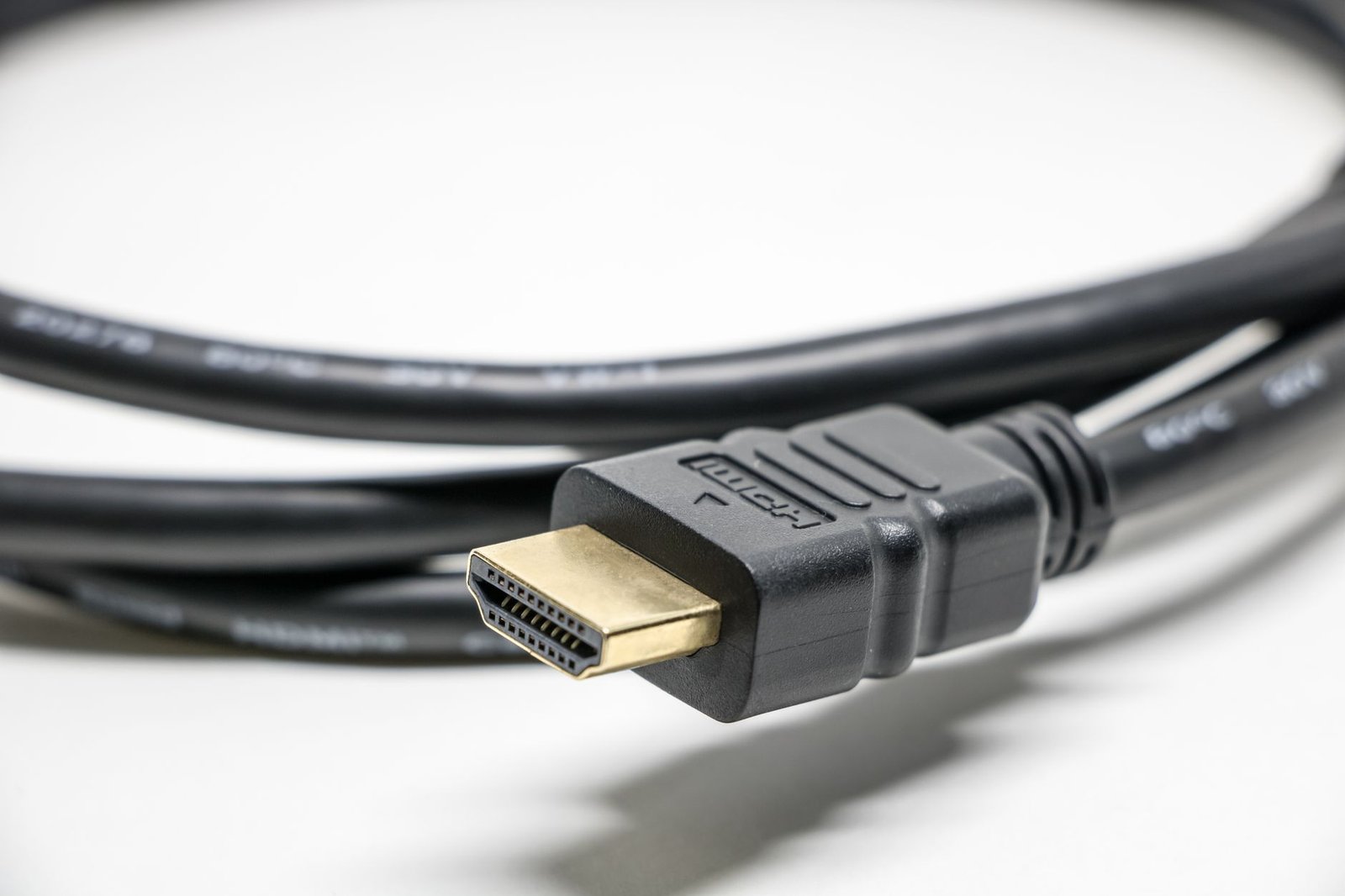
Each of these devices has a much wider choice of players than the Roku Store. Our device guides walk through the setup:
- Fire TV: setting up IPTV Smarters Pro on a Firestick
- Apple TV: our roundup of IPTV players for Apple TV
- Android TV or Google TV: our page on IPTV on Android TV
The same logic applies to every smart TV platform: what you can run depends on what the TV’s store allows. If you are comparing platforms, see what installs on LG and Samsung TVs.
If you have a Roku stick rather than a Roku TV, the equivalent move is to use one of these devices on that TV in place of the stick. Keep the Roku for everything else you watch.
The trade-off is simple. You get one more device and one more remote. In return, you get a full choice of players, a TV guide when the player offers one, and your phone stays free.
What to skip: sideloading, private channels and "loaded" Roku channels
Many guides still promise an IPTV app on Roku through a back door. These routes are closed, or never meant for viewers.
Sideloading is a developer tool. Installing an app outside the store needs developer mode. Roku’s developer setup page says developer mode requires enrolling in Roku’s developer program and accepting the Developer Tools License Agreement, which is for building apps with the Roku SDK.
A sideloaded app is installed outside the Streaming Store, and only one can be installed at a time. It exists so developers can test their own apps, not so viewers can add players.
Private channels ended in 2022. Older guides tell you to enter an access code for a “private channel”. BGR reported that Roku disabled all non-certified channels on all Roku devices on 23 February 2022, and users can no longer download or launch unofficial apps. Roku’s beta channels exist only for limited testing before an app’s release.
“Loaded” apps carry real risk. Some sellers push channels or add-ons that promise everything for nothing. In a 2019 consumer alert, the FTC warned about malware in illegal streaming apps: if you download one of those illegal pirate apps or add-ons, “the chances are good that you’ll also download malware.”
Whatever provider you choose, check its content rights yourself and check the law where you live.
Which route fits your Roku setup
Find your setup in the left column. The table pulls together the model and device limits from the sections above.
| Your setup | Best route | What you need | Main limit |
|---|---|---|---|
| Roku TV with a free HDMI port | Route 3 | Fire TV, Android TV or Apple TV device | One more remote |
| Roku TV or stick, plus Android phone or Windows PC | Route 2, mirroring | A supported Roku model, good Wi-Fi | Phone or PC tied up |
| Roku TV or stick, plus iPhone, iPad or Mac | Route 2, AirPlay | A compatible Roku model, same Wi-Fi | Phone or Mac tied up |
| Roku stick on another TV | Route 1 first | A store player that fits your login | Else use another device on that TV |
| Roku Express 3700 or Express+ 3710 | Route 1 or another device | A store player or a second device | No mirroring |
Sources: Roku Support, screen mirroring and Roku Support, AirPlay and HomeKit for the model limits.
Most Roku TV owners with a free HDMI port get the best result from Route 3. It gives you the widest choice of players and leaves your phone alone.
Mirroring is the fastest test. If you just want to see a stream on the big screen tonight, it gets you there with what you already own. Route 1 is still worth five minutes of searching first, because a store player that fits your login is the simplest setup of all.
Whichever route you pick, test it with a real login before you commit to months of service. PlayTVX names Roku among the devices it supports and does not publish a player of its own, so you will use one of the routes above. A 24-hour trial for $1.99 lets you check the player, the picture and your Wi-Fi together.
Once your IPTV for Roku TV route works, compare the PlayTVX subscription plans and pick the term that suits you.
Quick answers about IPTV apps and players on Roku
Can I download IPTV Smarters on Roku?
An official Roku Store listing for IPTV Smarters could not be confirmed, so search the Roku Store yourself before relying on it. Roku installs apps only from its store, as Roku’s add-an-app guide explains. If the app is not listed, run it on a Fire TV plugged into your Roku TV instead; see our guide to setting up IPTV Smarters Pro on a Firestick.
What is the best IPTV app for Roku?
No single IPTV app for Roku is best for everyone. The best one is a Roku Store player that accepts your login type and shows a TV guide. If the store has none that fits, the best player for your Roku TV runs on a second device plugged into its HDMI port.
Can Roku play M3U playlists?
Roku Media Player lists .M3U and .M3U8 among its playlist formats, but for personal media files from a USB drive or a DLNA server, according to Roku’s Media Player guide. It is not built as an IPTV service player with a provider login and a TV guide. For a provider’s playlist, use a dedicated player from the Roku Store or on another device.
Is it better to use a Fire Stick for IPTV instead of Roku?
For IPTV specifically, a Fire TV Stick gives you more player choice from its own store than a Roku does. On a Roku TV you do not have to pick one or the other. Plug the Fire TV Stick into a spare HDMI port for IPTV and keep the Roku for everything else, which is often the simplest way to get IPTV for Roku TV owners working.