Tivimate premium setup is a crucial topic for cord-cutters.
Article summary
If you are using an Android TV, Nvidia Shield, or Amazon Firestick, you have likely heard of TiviMate. Widely regarded as the best IPTV player on the market, TiviMate offers a cable-like experience, a lightning-fast interface, and unmatched recording capabilities.
However, getting it set up for the first time can be slightly confusing for beginners. This ultimate setup guide will walk you through exactly how to install TiviMate, unlock the Premium features, and add your IPTV playlist using Xtream Codes.
Step 1: Install TiviMate on Your Device
Because TiviMate is an Android-exclusive app, the installation process differs depending on your device.
For Android TV (Nvidia Shield, Chromecast with Google TV, Sony Smart TVs):
- Open the Google Play Store on your device.
- Search for “TiviMate IPTV Player” (Look for the blue icon by Armobsoft FZE).
- Click Install.
For Amazon Firestick:
TiviMate is not available in the Amazon Appstore, so you will need to “sideload” it.
- Go to Firestick Settings > My Fire TV > Developer Options.
- Turn ON Apps from Unknown Sources.
- Go back to the home screen, click Find, and search for Downloader. Install it.
- Open Downloader and enter this URL:
tivimate.com/apk(or a known clean mirror). - Click Go, wait for the download to finish, and click Install.
Step 2: Add Your IPTV Playlist (Xtream Codes)
Before you can watch anything, you need an IPTV subscription that provides login details. If you don’t have one yet, explore our premium IPTV subscription plans to get your credentials instantly.
The most reliable way to add a playlist is using the Xtream Codes Login.
- Open TiviMate.
- Click Add Playlist.
- Select Xtream Codes Login (This is much faster and less prone to typing errors than an M3U link).
- Enter the details provided by your IPTV service:
- Server Address (URL): (e.g.,
https://your-provider.example) - Username: Your assigned username.
- Password: Your assigned password.
- Check the box for Include VOD if you want movies and series.
- Click Next.
TiviMate will now process your playlist and load the channels. This may take a few minutes depending on the size of your provider’s library.
Step 3: Setup the EPG (TV Guide)
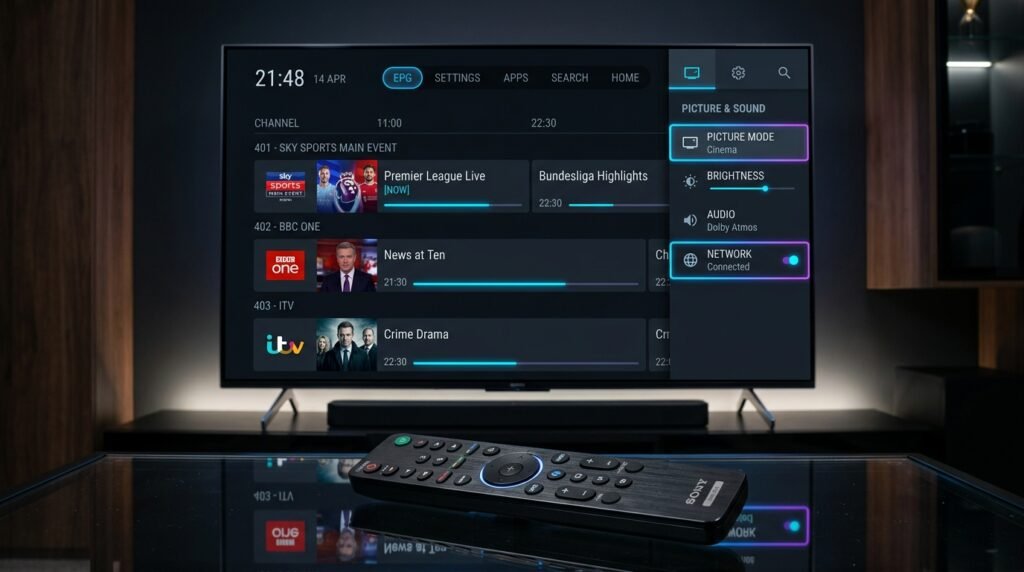
A huge advantage of TiviMate is its beautiful TV Guide, known as an EPG (Electronic Program Guide). If you used Xtream Codes in Step 2, the EPG should load automatically.
If it says “No Information” on the guide:
- Go to TiviMate Settings (gear icon).
- Select EPG.
- Click Update EPG.
Tip: If you want to learn more about how IPTV works behind the scenes, check out our Complete Guide to IPTV.
Step 4: Unlock TiviMate Premium
The free version of TiviMate is great for testing, but it is heavily restricted. To unlock features like Catch-up, Recording, Favorites management, and multiple playlists, you need TiviMate Premium.
How to get Premium:
TiviMate Premium requires a separate app called “TiviMate Companion,” which you must install on an Android phone or tablet (it is not available on iOS).
- On your Android phone, download TiviMate Companion from the Google Play Store.
- Open the app and create an account.
- Purchase a subscription (Yearly or Lifetime).
- Go back to the TiviMate app on your TV/Firestick.
- Try to access a premium feature (like adding a channel to Favorites). A prompt will appear asking you to unlock Premium.
- Click Next and log in with the TiviMate Companion account you just created.
- Select your TV device and click Activate.
Make the Most of TiviMate
Congratulations! You now have the most powerful IPTV setup available.
To ensure your TiviMate experience is buffer-free, it is crucial to pair it with a high-quality IPTV provider. Cheap providers will stutter, even on the best app. For 4K stability, a massive VOD library, and 24/7 support, check out the reliable PlayTVX IPTV service and take your streaming to the next level.
If channels load but the schedule is empty or shifted, follow the IPTV EPG troubleshooting guide before deleting the TiviMate playlist.