When you have IPTV no sound but the picture plays, the audio has reached a point in the chain that cannot play it. That chain runs from the provider’s feed to the player app, then to your device, then to the TV or soundbar. Find the point that fails, and you know which setting to change or whom to call.
Article summary
- Where Is the Silence? Three Questions That Find the Fault
- Why Is There No Sound on Some IPTV Channels but Not Others?
- Picture but No Sound: How an Audio Format Mismatch Silences IPTV
- PCM or Dolby: which should you pick?
- Set Audio Output to PCM on Fire TV, Google TV, Roku TV and Samsung TV
- Sound on the TV Speakers but Not the Soundbar
- Sound in VLC but Not in Your IPTV App? Test a Second Player
- When IPTV Sound Cuts Out or Drifts Out of Sync
- When the Silence Is in the Stream: Report It to Your Provider
- Other IPTV Audio Questions, Answered Briefly
- How do I change the audio track on IPTV?
- Should I turn off audio passthrough for IPTV?
- Why is there no sound on IPTV Smarters or TiviMate?
Where Is the Silence? Three Questions That Find the Fault
You do not need to try every tip on the internet. Answer three questions instead, and each answer sends you to one section below.
- One channel or all of them? If only some channels are silent, the problem sits in those channels’ audio. If every channel is silent, it sits in your device or player settings.
- One player or every player? If a channel has sound in another app, your first app is the problem. If it is silent everywhere, the feed is.
- TV speakers or soundbar? If the TV speakers work and the soundbar does not, the link between them is the problem.
Before any of that, rule out the obvious. Check that neither the TV nor the soundbar is muted or turned down, since each has its own volume. Also check that a Bluetooth headset is not still paired and quietly taking the audio.
This guide covers audio only. If the stream will not log in, shows a black screen or crashes, that is a different fault with different fixes.
Here is the whole diagnosis on one screen:
| What you notice | Likely layer | First check |
|---|---|---|
| One or a few channels silent | That channel’s audio track or format | Switch the audio track |
| Every channel silent on one device | Device output format | Set output to PCM |
| Sound on TV speakers, not the soundbar | HDMI ARC/eARC link | TV output to PCM, check the ARC port |
| Sound in VLC, not in your app | Player’s decoder | Second player, passthrough off |
| Silent in every player and device | Provider’s feed | Report it to support |
| Sound cuts out with the picture | Delivery (buffering) | Network and buffering fixes |
Why Is There No Sound on Some IPTV Channels but Not Others?
If only one channel or a few are silent, your device settings are fine. The problem is that channel’s audio. Either the channel carries several audio tracks and the player picked one that is empty or in another language, or its audio uses a format your device cannot decode.
The format part explains a lot. A channel’s audio comes in a format such as AAC, a common compressed format, or Dolby Digital (AC-3) or Dolby Digital Plus (E-AC-3). Android guarantees decoders for AAC, MP3 and Opus. AC-3 and E-AC-3 are not among the formats Android guarantees in its supported media formats list, and individual devices may support more than the list.
So Dolby support depends on the specific box, stick or TV. The same channel can therefore be silent on one Android box and fine on another. It also means your choice of player matters, which is why many viewers keep more than one of the IPTV players for Android installed.
Your first move is to switch the channel’s audio track (the steps are in the questions at the end). If that does not help, test the same channel in a second player, as described further down.
Picture but No Sound: How an Audio Format Mismatch Silences IPTV
Every IPTV stream carries its audio in a format, and something between the app and the speaker has to decode it. When nothing in that path can, you get the classic IPTV no sound fault: a picture and silence.
Knowing how an IPTV stream reaches your screen makes this easier to picture: the audio rides along with the video until something has to turn it into sound.
Amazon’s Dolby integration guidelines for Fire TV state the mechanism plainly. Audio playback fails if the encoding format is not supported by the connected endpoint, meaning the TV, soundbar or headset at the end of the chain.
When that endpoint cannot take Dolby Digital Plus, the platform can convert it to Dolby Digital, or the app has to fall back to a non-Dolby track or decode the audio to PCM.
PCM is plain, uncompressed audio. When your device sends PCM, it has already done the decoding itself, so the speaker has nothing left to decode. Roku calls PCM-Stereo “the most basic audio mode” that “can be played by all soundbars” in its guide to a silent Roku TV Ready soundbar. PCM is therefore the safe fallback.
PCM or Dolby: which should you pick?
Pick PCM when sound is missing or when your speakers are stereo. That covers TV speakers and most simple soundbars. Pick a Dolby option only when you have a surround system you know decodes it. Samsung’s support page on the Digital Output Audio Format setting says Dolby options are designed for surround systems and recommends PCM otherwise.
Set Audio Output to PCM on Fire TV, Google TV, Roku TV and Samsung TV
If every channel is silent on one device, change that device’s output format to PCM or stereo. PCM output tells the device to decode the audio itself instead of passing the raw Dolby signal along. The table shows where each platform keeps the setting.
| Device | Where the setting is | What to choose |
|---|---|---|
| Fire TV | Settings > Display & Sounds > Audio > Dolby Digital Output | Turn Dolby output off, or pick the stereo/PCM option under Audio |
| Google TV | All Settings > Display & Sound > Advanced sound settings > Surround sound format selection | Manual; on Google TV Streamer, Audio options > Output format > PCM |
| Roku TV | Settings > System > Audio > S/PDIF and ARC (newer software: Digital Audio Format) | PCM-Stereo |
| Samsung TV | Settings > Sound > Expert Settings > Digital Output Audio Format | PCM, unless you have a surround system |
Sources: Amazon Developer, Dolby Integration Guidelines for Fire TV; Google Chromecast Help, sound settings for Google TV; Roku Support, no sound on a Roku TV Ready soundbar; Samsung US Support, Digital Output Audio Format.
Fire TV. The Dolby Digital Output setting lives under Display & Sounds > Audio. If you have no sound on a Firestick, open that Audio menu and choose the stereo or PCM option your model offers. Then reopen the app. If you set up the player recently, our guide to IPTV Smarters Pro on Fire TV walks through the rest of the install.
Google TV. Google TV Streamer lists four output formats: Automatic, Dolby Digital Plus, Dolby Digital and PCM. Google warns that your TV, receiver or soundbar must support the format you choose. After a change, you may need to unplug the Streamer for one minute before it takes effect.
Roku TV. Choose PCM-Stereo. If the soundbar is still silent on PCM-Stereo, Roku says the next step is the soundbar’s manufacturer, because the fault is then in the hardware.
Samsung TV. The setting is called Digital Output Audio Format, and you can also reach it from Quick Settings. If you watch through an app installed on the TV itself, see our roundup of IPTV apps for Samsung and LG smart TVs.
On Apple TV, look for the audio format setting under Video and Audio.
Sound on the TV Speakers but Not the Soundbar
When the IPTV app plays through the TV speakers but the soundbar stays silent, the audio is reaching the TV fine. The trouble starts when the TV sends it back out to the soundbar over HDMI. That return path is its own layer, with its own list of formats it can carry.
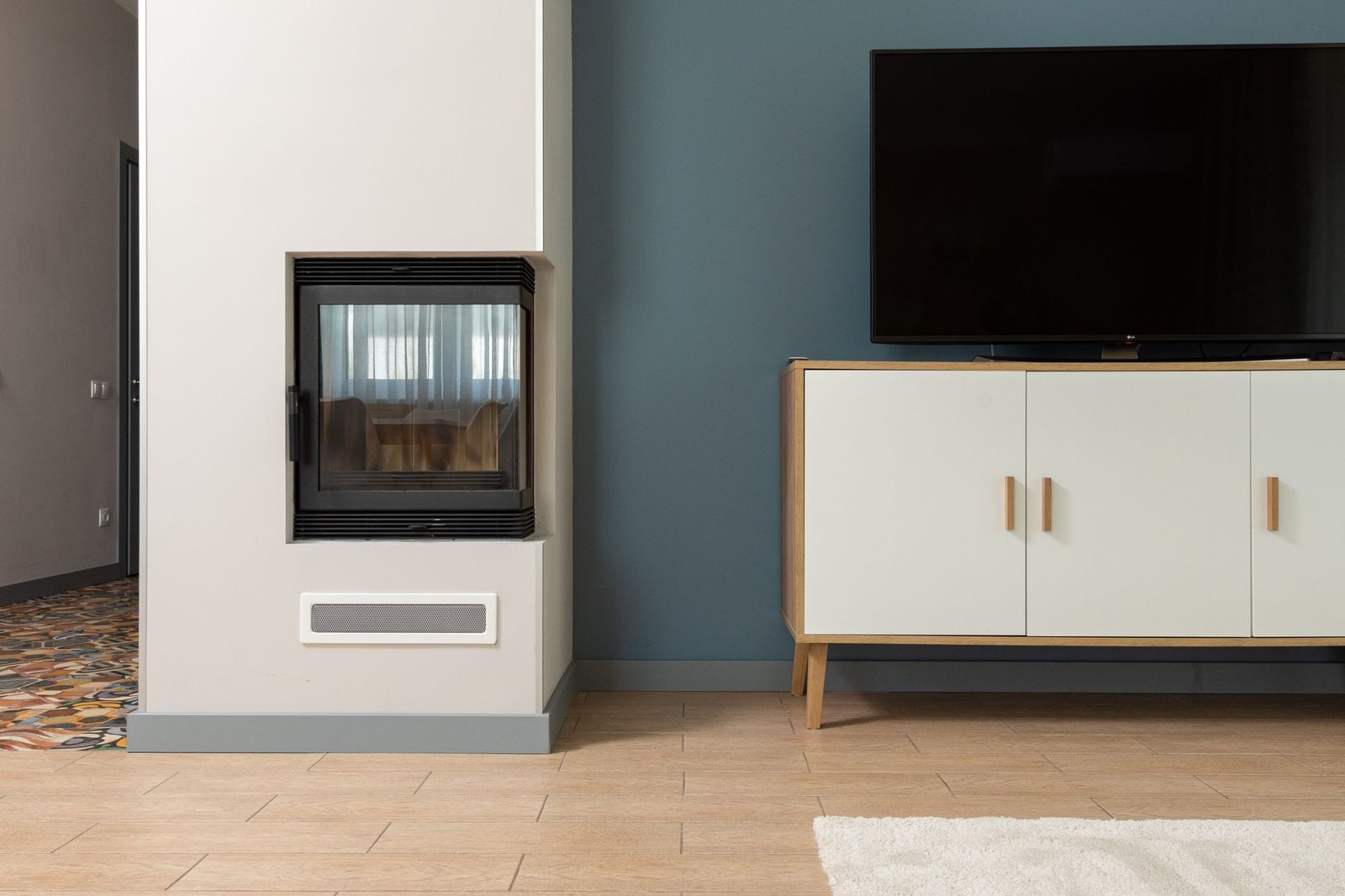
The return path is called ARC (Audio Return Channel). The newer version of ARC, eARC, is part of HDMI 2.1. The HDMI Licensing Administrator describes eARC as an advancement over the previous ARC. eARC carries audio from the TV to a sound system over one HDMI cable and supports high-bitrate formats. An older soundbar on plain ARC accepts fewer formats.
Roku explains what goes wrong. If the TV misreads what the soundbar supports, it “may output an unsupported audio format leading to no sound”. Work through these steps in order:
- Set the TV’s digital audio output to PCM, using the paths in the table above.
- Check that the HDMI cable sits in the port marked ARC or eARC on both the TV and the soundbar.
- Turn both devices off, unplug them for a minute, and turn them back on.
If the soundbar is still silent with PCM-Stereo, Roku’s advice is to contact the soundbar maker. At that point the settings are right and the hardware is the question.
Sound in VLC but Not in Your IPTV App? Test a Second Player
Players ship with different decoders. One app can fail on an audio format that another decodes without trouble. Playing the same channel in a second player tells you whether the problem is the app or the stream. If you are choosing one, our comparison of TiviMate, IPTV Smarters and XCIPTV covers how they differ.
On a computer, VLC is a handy second player. Its Audio menu has three useful entries, listed in the VLC menu bar documentation:
- Audio Track lets you select which audio track you want. Use it when a single channel is silent.
- Audio Device changes the device the audio plays on. Use it when sound goes to the wrong place, such as a monitor without speakers or a headset you unplugged.
- Stereo Mode sets how the audio is split between left and right.
Our guide to IPTV on Windows and Mac covers setting up playback on a computer. Install players only from your device’s official app store.
What the test tells you:
- Sound in the second player: change the first player’s audio settings, starting with passthrough, or switch players.
- Silent in every player: skip to the last section. The feed is the likely cause.
When IPTV Sound Cuts Out or Drifts Out of Sync
Sound that cuts out or drifts is a different problem from silence. The audio can be decoded, but it arrives unevenly.
If the sound stutters at the same moments as the picture, the cause is delivery, not an audio setting. Our guide on how to fix IPTV buffering and freezing covers that side. PlayTVX recommends at least 15 Mbps for HD and 25 Mbps or more for 4K.
If the picture is smooth but the voices drift away from the lips, look at decoding and output instead. Retest with PCM output and in a second player. Many players also have an audio delay or sync option in their settings that lets you nudge the sound back in line.
When the Silence Is in the Stream: Report It to Your Provider
An IPTV no sound fault that stays on one channel in every player, on every device, with PCM output set, means the feed itself has no usable audio. Nothing on your side can fix that. Only the provider can.
Give support the details that save time:
- the channel name and the time you watched it;
- the device and the player you used;
- that you already tried PCM output and a second player.
PlayTVX states on its PlayTVX subscription plans page that it offers support by live chat, WhatsApp and email. Its refund policy covers technical problems that support cannot resolve within 72 hours.
If you want to know how channels sound on your own device and soundbar before you commit to a plan, a 24-hour trial for $1.99 lets you run these checks first.
Fixing IPTV no sound comes down to three questions: one channel or all, one player or all, TV speakers or soundbar. Set PCM output when in doubt, switch the track on a silent channel, and report one that is silent everywhere. Want to check how channels sound on your setup first? Start a 24-hour trial for $1.99 or compare the IPTV subscription plans.
Other IPTV Audio Questions, Answered Briefly
How do I change the audio track on IPTV?
To change the audio track on IPTV, open the player’s audio or track option while the channel is playing and pick a different track. In VLC on a computer, the option is Audio > Audio Track, which the VLC documentation describes as the place to select which audio track you want. Try each track before deciding the channel is silent.
Should I turn off audio passthrough for IPTV?
Yes, turn off audio passthrough if your IPTV has no sound. Passthrough sends the stream’s original Dolby audio straight to the TV or soundbar, which may not decode it. With passthrough off, the device decodes the audio itself, the fallback Amazon’s Fire TV Dolby guidelines describe when an endpoint cannot take the format.
Why is there no sound on IPTV Smarters or TiviMate?
No sound in IPTV Smarters or TiviMate comes down to the player’s audio track or passthrough setting, or to the device’s output format. Neither app is the source of the audio, so the same checks apply to both: switch the track, turn passthrough off, and set the device to PCM. Our TiviMate setup guide helps you recheck the app’s settings.