IPTV setup comes down to two things: a player app installed on your device, and the login your provider sends you. Put the login into the player, wait for the channel list and the TV guide to load, and you are watching.
Article summary
- What Do You Need to Set Up IPTV?
- Step 1: Check Your Internet Speed Before Anything Else
- Step 2: Find Where Your TV or Streaming Device Gets Its Player
- Phones, Computers and Set-Top Boxes
- Step 3: Install the Player From the Official Store Only
- Step 4: Enter Your M3U Link or Xtream Codes Login
- Step 5: Load the TV Guide and Run a First Check
- Why Isn't My IPTV Channel List Loading After Setup?
- Test Your Setup on a 24-Hour Trial Before You Commit
- Smart TV, Roku and Apple TV: Quick IPTV Setup Answers
- Do I need a box for IPTV or can I use my smart TV?
- Can I install IPTV on Roku?
- Can I put IPTV on an Apple TV?
- Is there an app for IPTV?
The whole job takes five steps. Check your internet speed. Find where your device gets its apps. Install a player from that official store. Enter your M3U link or Xtream Codes login. Then load the guide and run a quick test.
This page walks each step and points every device to its own detailed guide. If you want the background first, start with what IPTV is and how it works.
What Do You Need to Set Up IPTV?
You need three things before you start:
- An internet connection fast enough for the picture quality you want (Step 1 covers the numbers).
- A device that can install apps: a smart TV, a streaming stick or box, a phone, a tablet or a computer.
- An IPTV subscription, which gives you the login details the player needs.
The player and the subscription are two separate products. The player is an app that knows how to read a channel list and play it. The subscription is what fills that app with channels. An empty player shows nothing until you add a login.
Here is how that works with PlayTVX. PlayTVX states that after checkout, your login details and setup instructions arrive by email. You then install a compatible player, enter those details and start streaming.
Players such as IPTV Smarters Pro and TiviMate are independent apps made by third parties. PlayTVX does not own them and is not endorsed by them. They are simply the software that reads the login your provider gives you.
For a wider view of how IPTV fits together, see our complete IPTV guide.
Step 1: Check Your Internet Speed Before Anything Else
A slow connection makes a perfect setup look broken. Run a speed test on the device you plan to watch on, or on another device in the same room, before you install anything.
The FCC publishes minimum download speeds for one activity at a time. SD video needs 3 to 4 Mbps, HD needs 5 to 8 Mbps, and 4K needs 25 Mbps. The FCC calls these rough guidelines and notes that several streams at once need more.
PlayTVX advises more than that: at least 15 Mbps for HD and 25 Mbps or more for 4K. The FCC figure is a floor for a single stream. A higher target leaves room for other people in the house using the same connection at the same time.
| Picture quality | FCC minimum (one stream) | PlayTVX’s recommendation |
|---|---|---|
| SD | 3 to 4 Mbps | Not stated |
| HD | 5 to 8 Mbps | At least 15 Mbps |
| 4K | 25 Mbps | 25 Mbps or more |
Sources: FCC, Broadband Speed Guide for the minimums; PlayTVX, IPTV subscription page for its recommendation.
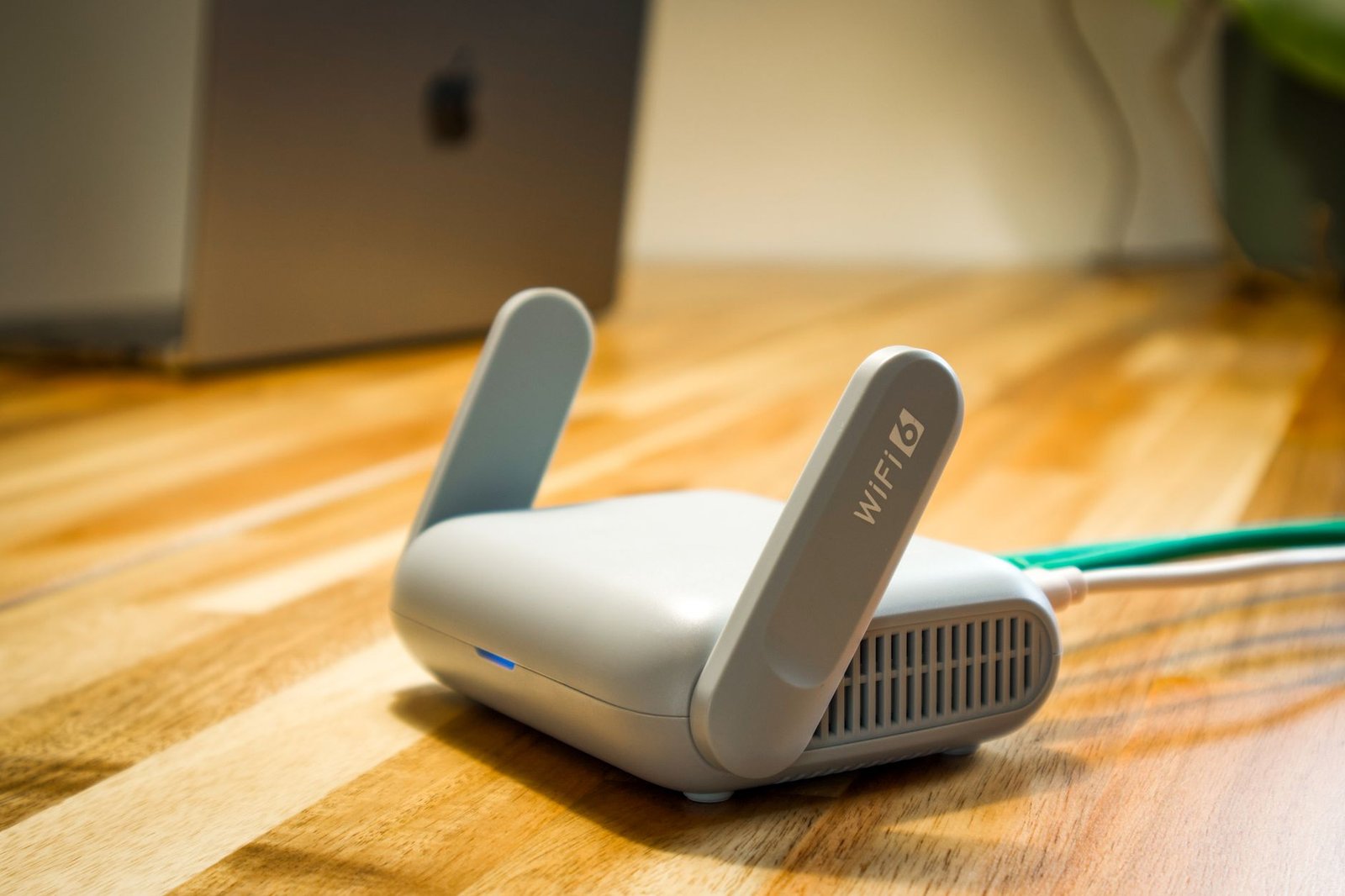
If your TV or box has an Ethernet port, a cable to the router is usually steadier than Wi-Fi. For the full picture, read how much internet speed IPTV really needs.
Step 2: Find Where Your TV or Streaming Device Gets Its Player
On a TV or streaming device, the player comes from the device’s own app store. That store decides what you can install. So the real question is not “which app is best” but “which apps does my store carry”. Here is where each one gets its apps.
Samsung Smart TV. Go to Home, then Apps, search for the player and install it. Samsung says you need a Samsung Account for streaming apps, and that only apps in its store can be installed on the TV (Samsung US support).
LG webOS TV. Sign in to your LG account, search the LG Content Store, then select Install. The app then shows up in the launcher (LG US Help Library). To pick a player on either brand, see the best IPTV apps for Samsung and LG TVs.
Google TV and Android TV. On Google TV, you install apps from Search or the Apps tab, then select Install (Google TV Help). Older Android TV devices use the Google Play Store app, found under Apps (Android TV Help).
Apple TV. On an Apple TV 4K or Apple TV HD, open the App Store, search for the player and select Get. The Apple TV (3rd generation) has no App Store and can only update its built-in apps, so it cannot run an IPTV player (Apple Support). Our page on IPTV players for Apple TV compares the options.
Roku. Roku apps come from the Streaming Store. You can open it on the device, at channelstore.roku.com or in the Roku mobile app. An app you add appears on every Roku linked to your account (Roku Support). IPTV on Roku works only if a compatible player is in that store.
Amazon Fire TV. Fire TV has its own setup path. Our guide to setting up IPTV Smarters Pro on a Fire TV Stick covers it.
| Device | Player source | Account | Runs a player? |
|---|---|---|---|
| Samsung TV | Samsung’s app store | Samsung Account | Yes, store only |
| LG webOS TV | LG Content Store | LG account | Yes |
| Google TV | Search or Apps tab | Not stated | Yes |
| Older Android TV | Google Play Store | Not stated | Yes |
| Apple TV 4K / HD | App Store | Not stated | Yes |
| Apple TV (3rd gen) | No App Store | Not stated | No |
| Roku | Streaming Store | Roku account | If one is in the store |
Sources: Samsung US support; LG US Help Library; Google TV Help; Android TV Help; Apple Support, Download apps on Apple TV; Roku Support, Add an app.
Phones, Computers and Set-Top Boxes
Android phones and tablets get their player from Google Play. iPhone and iPad get theirs from the App Store. Once installed, the player works the same way as on a TV: add your login and wait for the list. For app choices, see IPTV players for Android and IPTV players for iPhone and iPad.
Windows and Mac computers can test a playlist quickly with the VLC media player. In VLC, open Media, then Open Network Stream, paste the playlist address and press Play. A Caching setting sits under “Show more options” if playback stutters (VideoLAN Wiki). The menu layout may differ slightly on newer versions. For a full walkthrough with dedicated players, read IPTV setup on Windows and Mac.
MAG and Enigma2 boxes are both on PlayTVX’s list of supported devices. On these boxes, setup goes through the box’s portal settings, following the instructions your provider sends.
Some TV players and boxes ask for the device’s MAC address, a code that identifies that one device. Give your provider the right one and double-check it. PlayTVX’s refund policy states that an activation cannot be moved to another device once it is set up for a wrong address.
Step 3: Install the Player From the Official Store Only
This step protects your device and your accounts. Some websites offer “loaded” apps and add-ons that come with channels already inside. Skip them.
The Federal Trade Commission put it plainly in a 2019 consumer alert on malware in streaming apps: “If you download one of these illegal pirate apps or add-ons, the chances are good that you’ll also download malware.”
The rule is simple:
- Install the player only from your device’s own store: Samsung’s store, the LG Content Store, Google Play, the App Store or the Roku Streaming Store.
- Do not install apps or add-ons from unknown websites, even if a video tutorial tells you to.
- Treat any app that arrives with channels already in it as a red flag. A real player is an empty shell until you add your own login.
Whether a given service is lawful is a separate question. Check a provider’s content rights and your local law yourself before you subscribe.
Not sure which player to choose? Our comparison of TiviMate vs IPTV Smarters vs XCIPTV lays out the differences, and the TiviMate setup guide shows one player from start to finish.
Step 4: Enter Your M3U Link or Xtream Codes Login
Your provider’s email gives you your login in one of two formats:
- An M3U playlist link. This is a single web address that points to your channel list. In most players, you add it from an option labelled something like “Add playlist” or “M3U URL”.
- An Xtream Codes login. This is three pieces of information: a server address, a username and a password. In most players, you enter them on a screen labelled something like “Login with Xtream Codes API”.
The exact labels change from one app to the next, but every IPTV player has a screen for one or both formats. If you want to know which to pick when you have both, read the difference between M3U and Xtream Codes.
Typing is where most first setups fail. A server address usually looks like http://your-server-address:port (a placeholder, not a real address). One missing “http://”, a dropped port number or a single wrong letter is enough to stop the list from loading. Copy and paste from the email wherever your device allows it. On a TV remote, type slowly and check each character before you save.
No login yet? Compare the PlayTVX subscription plans. The plans differ only in length and price, and PlayTVX states that your login details arrive by email after checkout.
Step 5: Load the TV Guide and Run a First Check
After you log in, the player downloads the channel list first and the EPG (electronic program guide, the TV guide grid) second. The guide often fills in some time after the channels appear, so an empty guide right after login is normal at first.
Some providers send a separate EPG link. If yours did, paste it into the player’s EPG or TV guide setting. PlayTVX states that its service includes a TV guide.
Once the list and guide have loaded, run a three-part check:
- Open any live channel and let it play for a minute.
- Open a channel at the quality you plan to watch most, such as HD or 4K.
- Open the TV guide and confirm it shows what is on now.
If all three work, your setup is done. If one fails, the next section covers the usual causes. For a guide that stays empty, see when the IPTV guide won’t load.
Why Isn't My IPTV Channel List Loading After Setup?
A list that will not load is almost always one of a few things. Work through them in this order:
- Check the login. Compare the server address, username and password with the email, character by character.
- Restart. Close the player fully, then restart the device.
- Check the connection. Run a speed test again and compare it with Step 1.
- Give it time. A large channel list can take a while to load on the first run.
If the player rejects your login outright, contact your provider’s support with the exact error message. If channels load but stutter or freeze, read our guide to fixing IPTV buffering and freezing.
PlayTVX states that it offers installation help by live chat, WhatsApp and email, so you do not have to solve a stuck setup alone.
Test Your Setup on a 24-Hour Trial Before You Commit
IPTV setup is five steps: check your speed, find your device’s store, install a player from it, enter your login, then load the guide and test. Every device on this page follows the same path, only the store changes.
The cheapest way to prove your IPTV setup works on your own TV and network is a short test before a long plan. PlayTVX’s trial is paid and lasts 24 hours, long enough to check your device, player and connection before you choose a plan. Start a 24-hour PlayTVX trial for $1.99.
Smart TV, Roku and Apple TV: Quick IPTV Setup Answers
Do I need a box for IPTV or can I use my smart TV?
You do not need a box for IPTV if your smart TV can install a player from its own store. Samsung, LG webOS, Google TV and Android TV sets all install apps from a built-in store, according to each maker’s support pages. A box or stick only helps when your TV’s store has no suitable player.
Can I install IPTV on Roku?
You can set up IPTV on Roku only through a player available in the Roku Streaming Store. Roku adds apps from that store on the device, at channelstore.roku.com or in the Roku mobile app, according to Roku Support. Check the Streaming Store for a compatible player before you subscribe.
Can I put IPTV on an Apple TV?
Yes, you can put IPTV on an Apple TV 4K or Apple TV HD by installing a player from the App Store. You cannot on the Apple TV (3rd generation), which has no App Store and only updates its built-in apps, according to Apple Support.
Is there an app for IPTV?
There is no single official IPTV app. You use a third-party player, such as IPTV Smarters Pro or TiviMate, which is independent of your provider, and add the login your provider sends you. PlayTVX states that its login details arrive by email after checkout, ready to enter in a compatible player.